
Set Up Category Templates
Goal
Category templates are pre-built templates that enable you to start categorizing your interactions in different areas of business such as: Agent Performance, Customer Experience, Risk Aversion, and more. When you select one of the pre-built category templates, you can move, delete, rename, or alter any of the automatic category nodes to your specific needs. The changes only affect the template and not the category templates of existing datasets. This topic covers the basic set up of category templates.
Create a Category Template
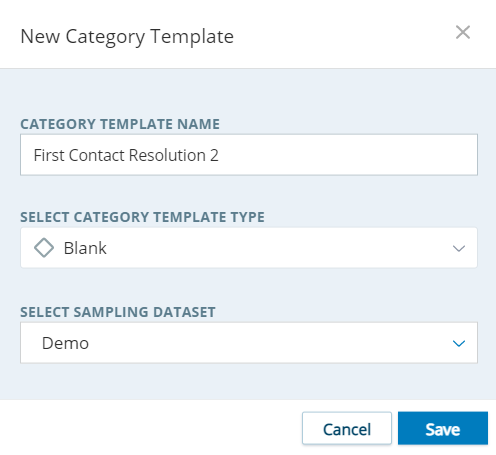
- Click Templates > Category Templates > New Category Template.
- Type a unique and descriptive name for the category template in the Category Template Name field.
- From the Select Category Template Type drop-down, select the template you want to build your category template from. If you do not want to use a template, select Blank.
- From the Select Sampling Dataset drop-down, select the dataset you want to use to pull in contacts to help you modify categories.
- Click Save. The new category template appears below the out-of-the-box category templates in the table and a progress bar appears.
- When the new category template is ready, click its name to open it and modify the category template to meet your needs.
Rename a Category Template
- Click Templates > Category Templates.
- Select the category template you want to modify and click Options
 . Click Edit Category Template.
 - In the Category Template window, change the category template name in the Category Template Name field and click Save.
Select Different Data for a Category Template to Sample
- Click Templates > Category Templates.
- Select the category template you want to modify and click Options . Click Edit Category Template.
- In the Category Template window, open the Select Dataset to Sample drop-down and select the dataset you want to use for customizing the category template. Click Save.
Import a Category Template
-
Click Templates > Category Templates.
- Click Options > Import.
-
Select the file you want to import. Enter a Name for your new template and select the Topic Used to Find Categories. Click Import.
Export a Category Template
- Click Templates > Category Templates.
- Select the category template you want to export and click Options . Click Export.
- In the Export Category Template Window, enter a Name for the file. Click Export. The template saves as a .dat file.
What's Next
For more advanced customization, see Additional Configuration Tasks.